THAT Wallet · Buying guide
Buy THAT in the App
Top up your THAT wallet by card or Apple Pay in a couple of minutes, without leaving the app. Banxa, our buying partner, handles the payment; the THAT lands straight in your wallet.
- About 5 minutes
- Card, Apple Pay, Google Pay or PayID
- ID check the first time only
What you'll need
The THAT app, with a wallet
No wallet yet? The setup guide takes about ten minutes.
A way to pay
Apple Pay or Google Pay, a Visa or Mastercard, or PayID from your banking app.
Photo ID, the first time
A driver licence or passport, for Banxa's one-off identity check.
Who you're paying
The 4 steps
- Open Your Wallet and Tap BuyWallet tab, then Buy
- Choose an AmountDollars in, THAT out, fee shown first
- Verify Your Identity and PayA one-off ID check, then pay
- Return to THATBack to the app; your THAT arrives
Prefer to buy on an exchange? For larger amounts a bank transfer is usually cheaper than a card. Buy THAT on CoinStash, step by step.
Step 1 of 4 · Tap Buy
Open Your Wallet and Tap Buy
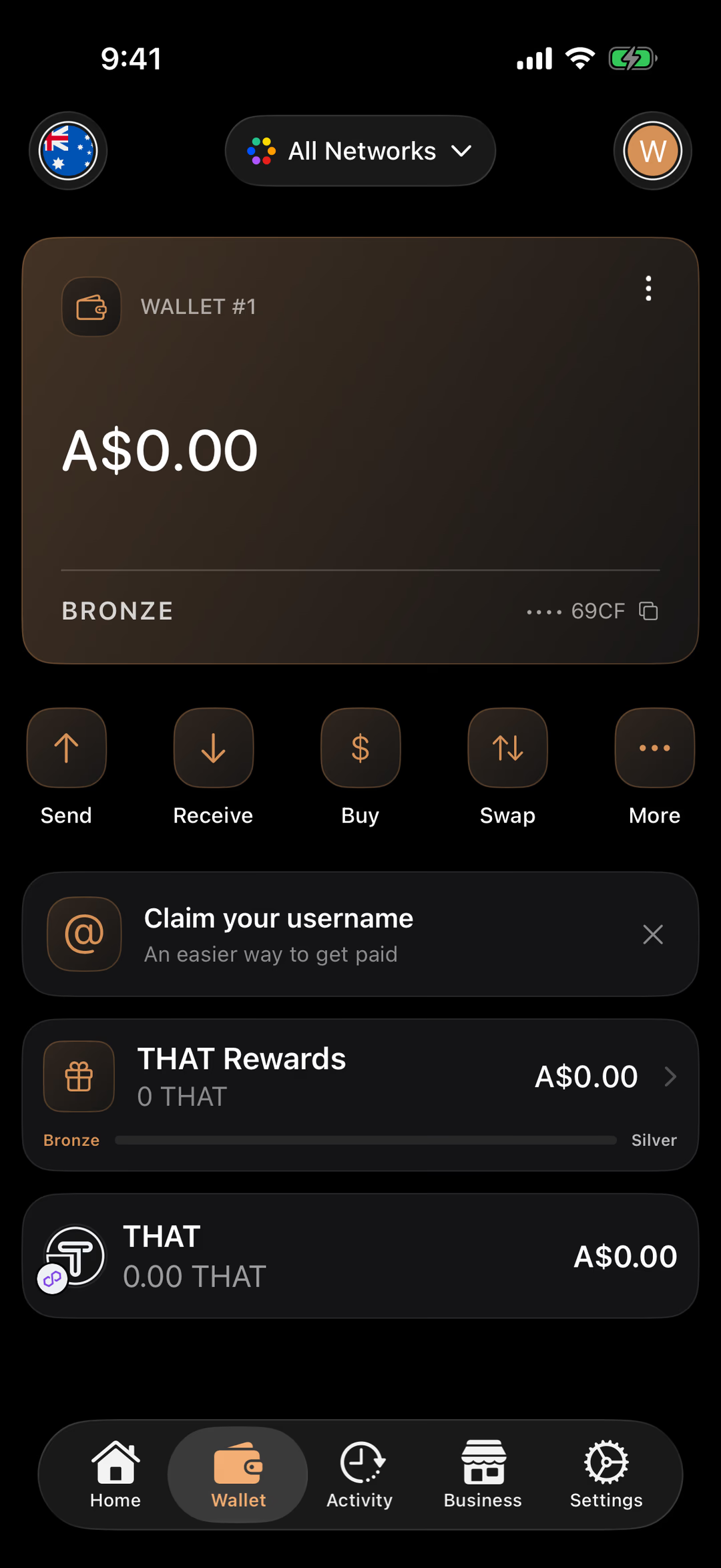
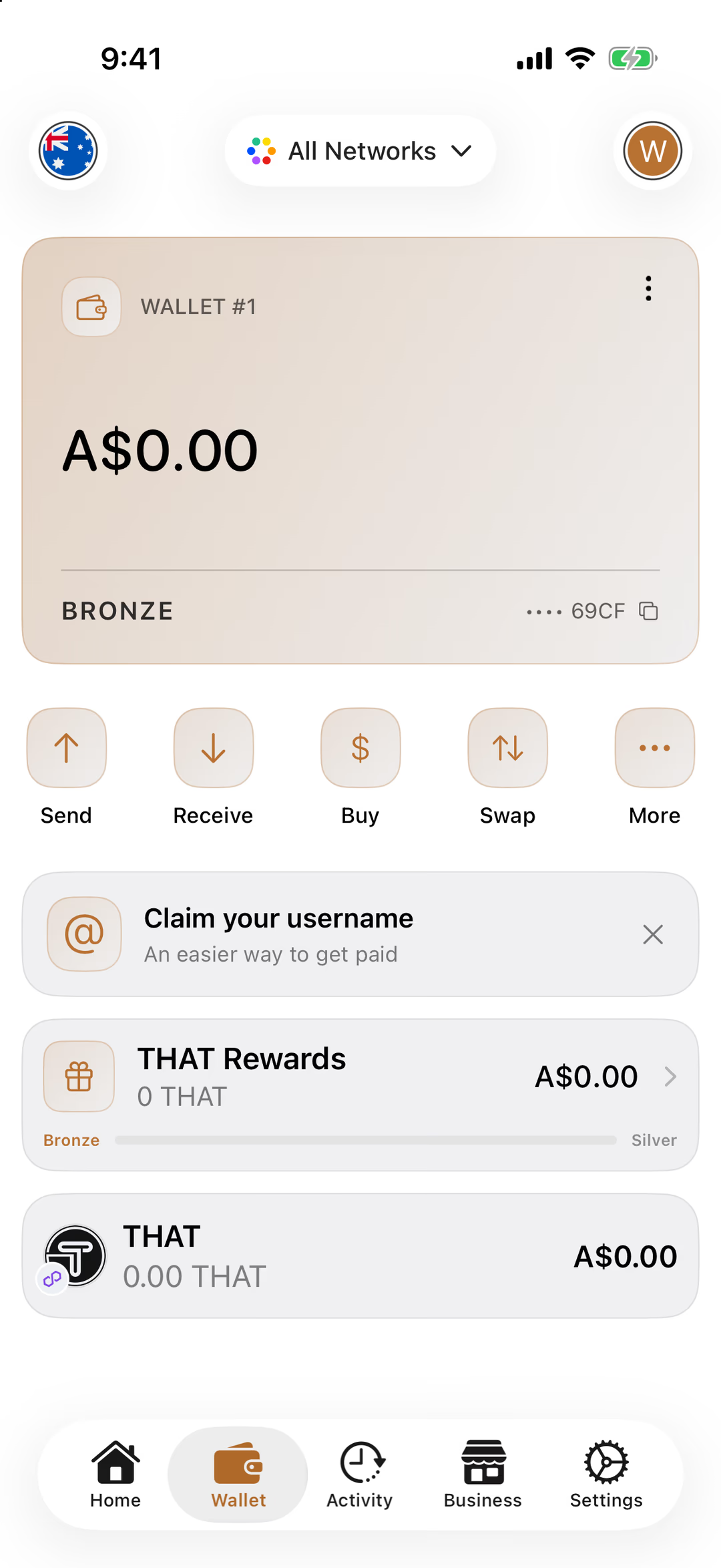
The Buy button is on the Wallet tab.
In the THAT app, tap Wallet at the bottom of the screen, then Buy.
Have more than one wallet? Switch to the one you want topped up first, with the circle at the top right.
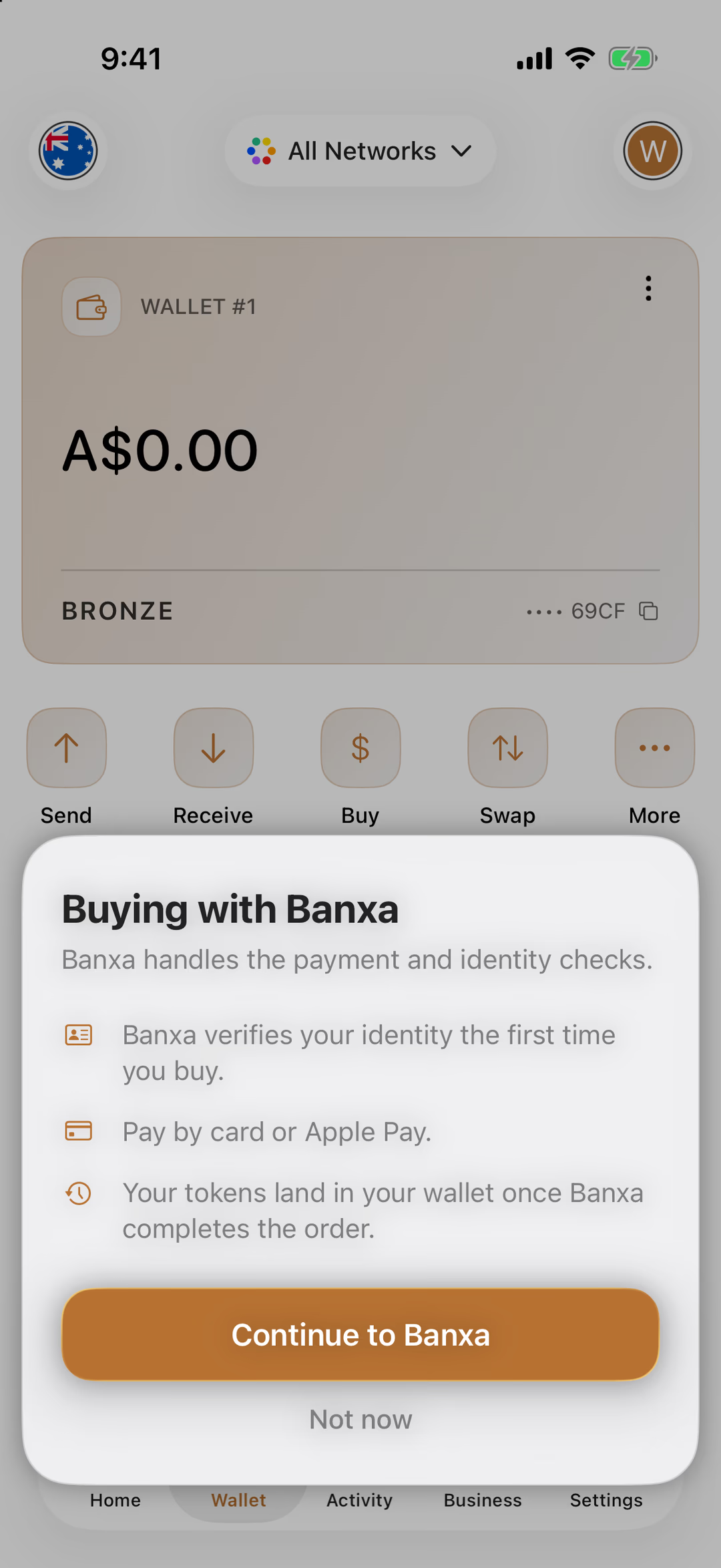
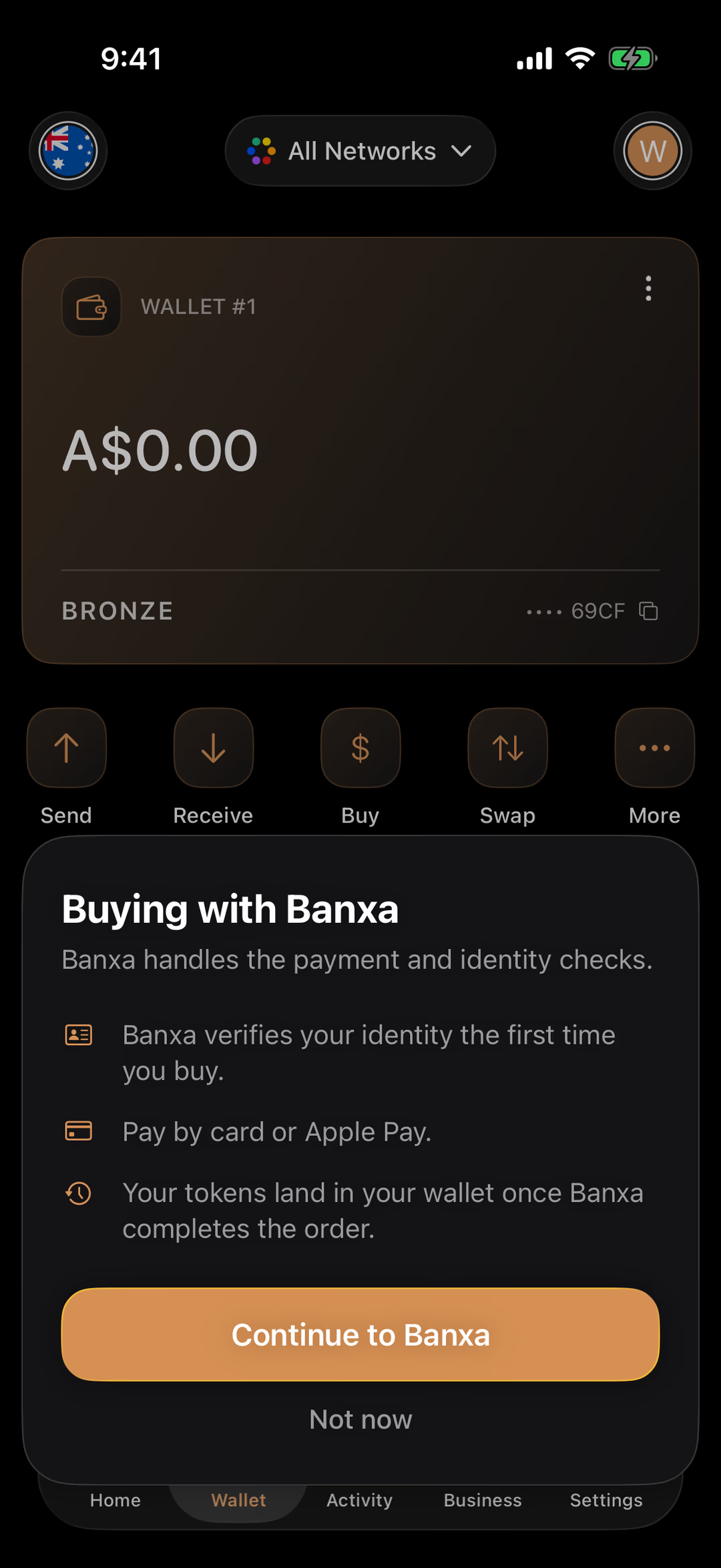
Tap Buy. Read the Buying with Banxa notice, then tap Continue to Banxa.
It appears once, the first time, and says three things worth knowing: Banxa verifies your identity the first time you buy; you pay by card or Apple Pay; and your tokens land in your wallet once Banxa completes the order.
Read it once, then continue.
Why it leaves the app
Step 2 of 4 · Amount
Choose an Amount
In dollars, with the fee shown before you pay.
Enter how much you want to spend, in Australian dollars.
The checkout shows how much THAT you'll get for it, and Banxa's fee, before you go any further. It also shows a small minimum if you're under it.
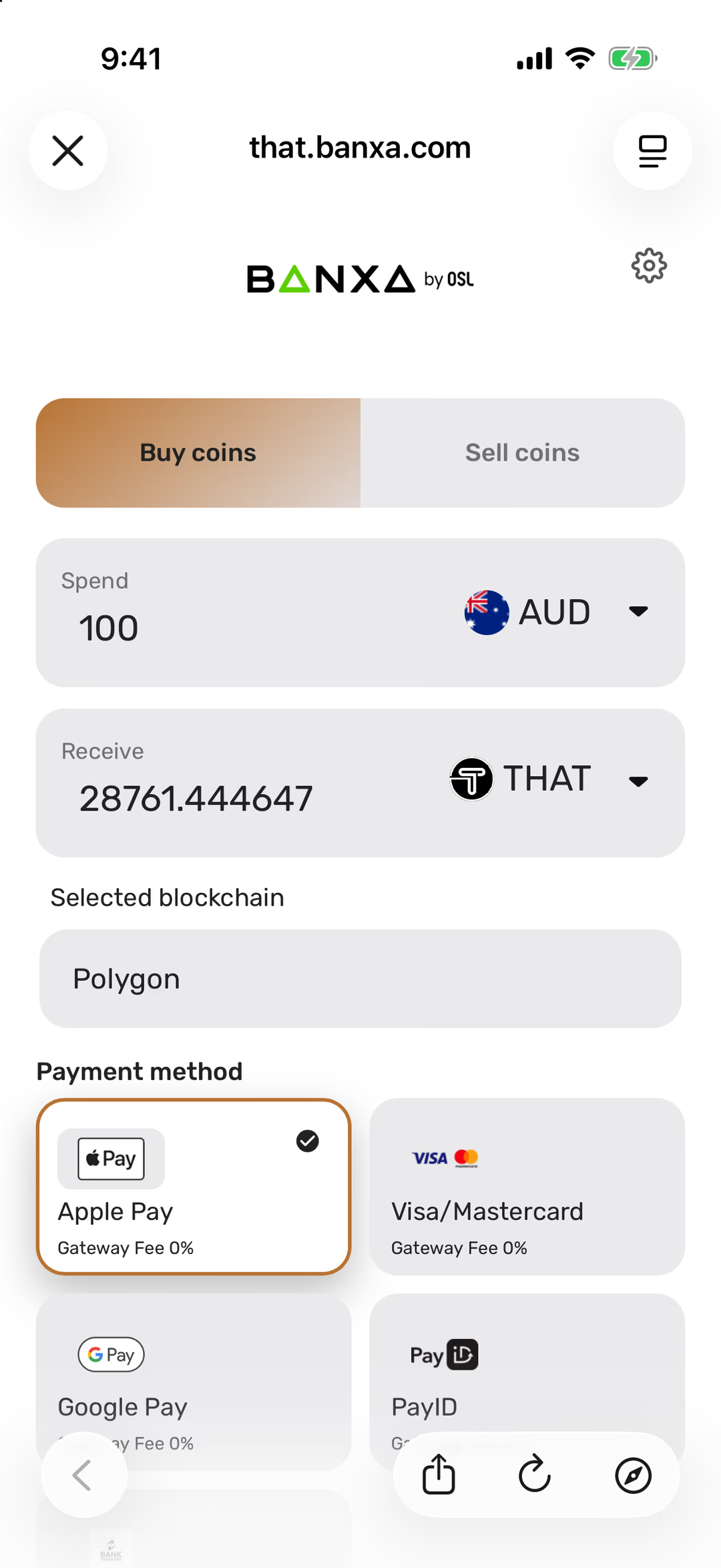
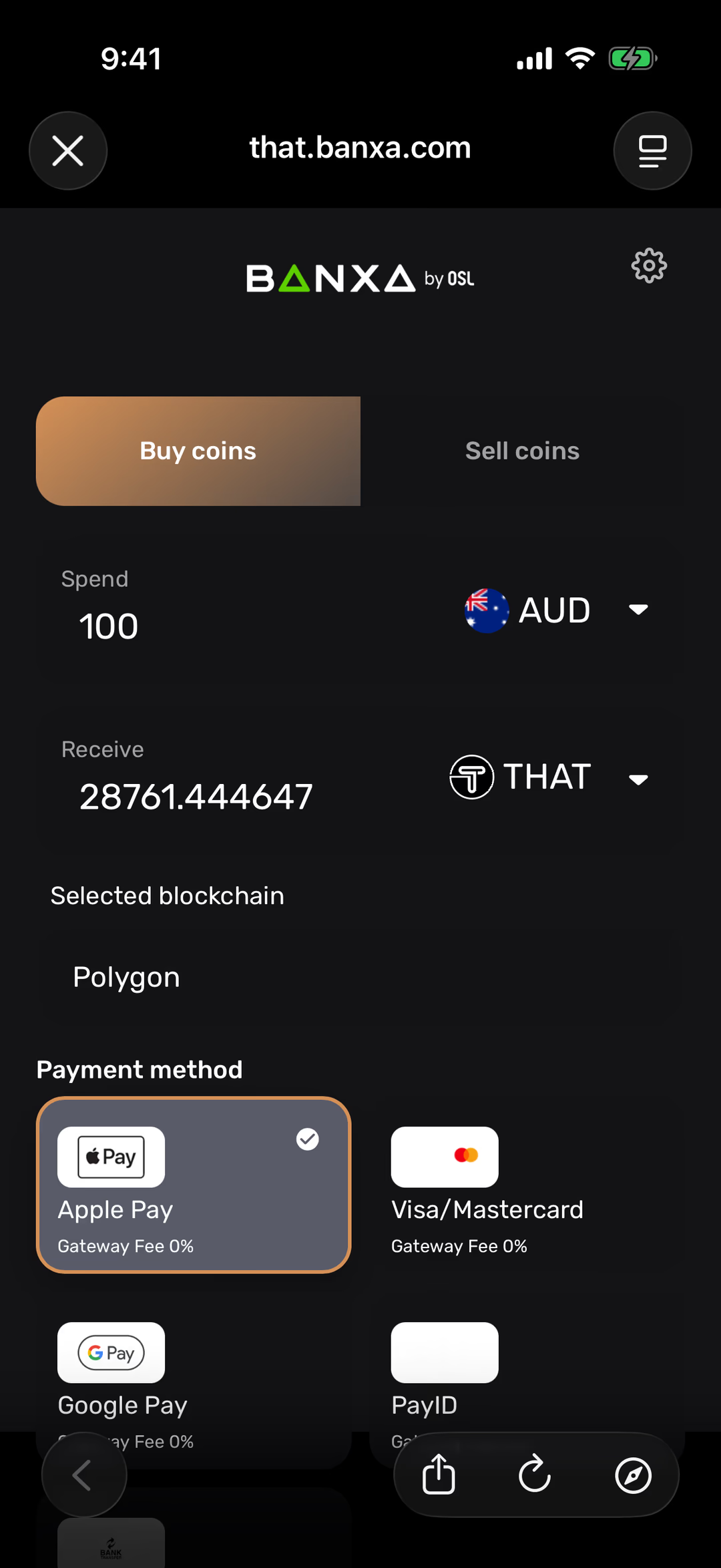
Banxa's checkout, inside THAT. Polygon is already selected. Choose how to pay: Apple Pay or Google Pay, a Visa or Mastercard, or PayID from your banking app.
Check the wallet address shown is yours, then continue.
THAT fills it in for you from the wallet you had open, so it will be. It's still worth the glance: the last four characters match the ones on your wallet card.
About the fee
Step 3 of 4 · Verify & pay
Verify Your Identity and Pay
An ID check the first time, like any Australian exchange.
The first time only: verify your identity with Banxa, with a photo ID.
A driver licence or passport, photographed in the checkout, the same as opening an account with an Australian exchange. Banxa keeps it; THAT never sees it. Next time you buy, this step is gone.
Confirm the payment with your card or Apple Pay.
Banxa's confirmation shows the order and its status, and emails you a receipt. The order is processing from here; you don't need to keep the screen open.
If the card is declined
Step 4 of 4 · Return
Return to THAT
Your THAT arrives in your wallet.
Tap Return to THAT Wallet on Banxa's confirmation.
It brings you straight back to the app. If it doesn't, just open THAT yourself.
Your THAT appears in the Wallet tab once Banxa completes the order, usually within minutes.
It arrives on the Polygon network; your wallet shows it without you switching anything. Activity lists the incoming transfer.
It shows here, and in Activity. (This picture is a new wallet, still at zero.)
Not there yet?
Purchase complete
You’ve Got THAT
It’s in your wallet, on your phone, under your keys. Now find somewhere to spend it.
What's next
Find somewhere to spend it. Browse the businesses that accept THAT — cafés, restaurants, services and more.
Learn how to pay. How to pay with crypto using the THAT app — scan, confirm, done.
Know every button. Take the wallet tour — what each part of the app does, before you press it for real.
Keep it safe. Four rules cover almost everything. Learn them once.
Buying in the App — Questions
Why does Banxa ask for my ID?+
Australian law requires anyone selling crypto for dollars to verify who they are selling to, the same as an exchange or a bank. Banxa does that check, not THAT, and only the first time you buy. THAT never sees your ID documents.
What does it cost?+
Banxa's fee is shown on the checkout before you pay, alongside the amount of THAT you'll receive; it covers card processing and Banxa's margin. THAT doesn't add a fee of its own. For larger amounts, buying on an exchange with a bank transfer is usually cheaper.
How long does it take?+
Card and Apple Pay orders usually complete within minutes, and the THAT appears in your wallet as soon as Banxa sends it. A first order can take longer while identity checks run. Banxa emails you when the order completes.
Which network does the THAT arrive on?+
Polygon. Your THAT wallet shows it automatically; there's nothing to switch. THAT has the same address on Polygon and Ethereum, and you can move it between them with Bridge, under More.
Banxa says the order is complete, but I can't see the THAT.+
Open the Wallet tab and pull down to refresh, and check Activity for the incoming transfer. If it still hasn't arrived after half an hour, contact Banxa's support with your order ID; the order and the payment are theirs until the THAT is sent.
Can I buy something other than THAT?+
The in-app Buy is set up for THAT. To hold something else, buy THAT and use Swap in the app, or buy on an exchange and send it to your wallet address.
Is there a minimum?+
Banxa sets a small minimum, which the checkout shows as you enter an amount. There's no minimum on THAT's side.